
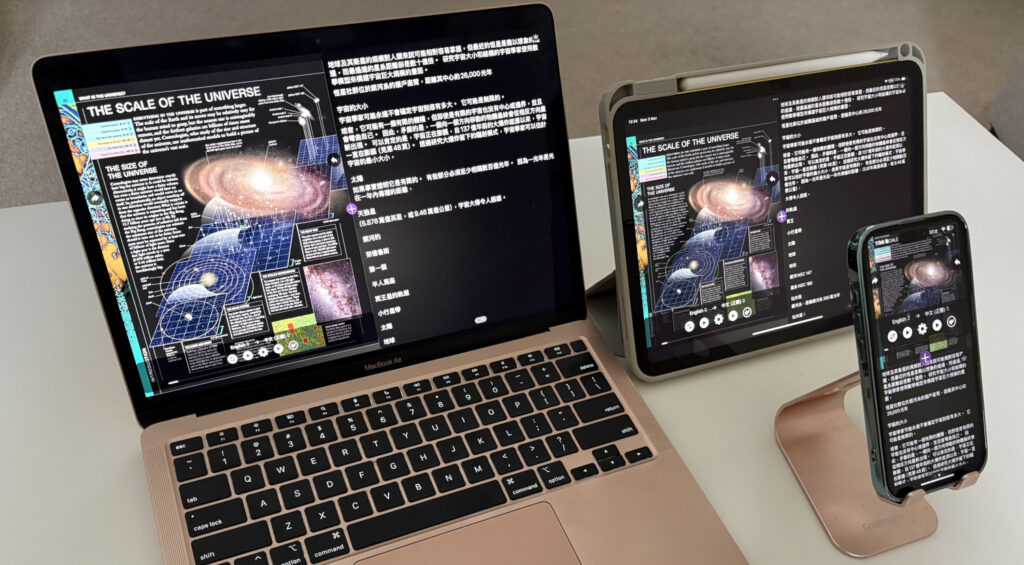
How to Download Languages for 20+ Offline Translation & Read-Aloud
Transay works 100% offline after downloading languages! Whether on a plane, subway, or remote mountain, you can listen to an entire PDF anytime!
Why Download Languages?
| Scenario | Benefits |
|---|---|
| Commuting / Travel | Translate without Wi-Fi |
| Elderly Users | Smooth reading without network lag |
| Save Data | One-time download, use forever |
| Stable Experience | No signal? No problem! |
Step-by-Step: Download Languages in 3 Steps
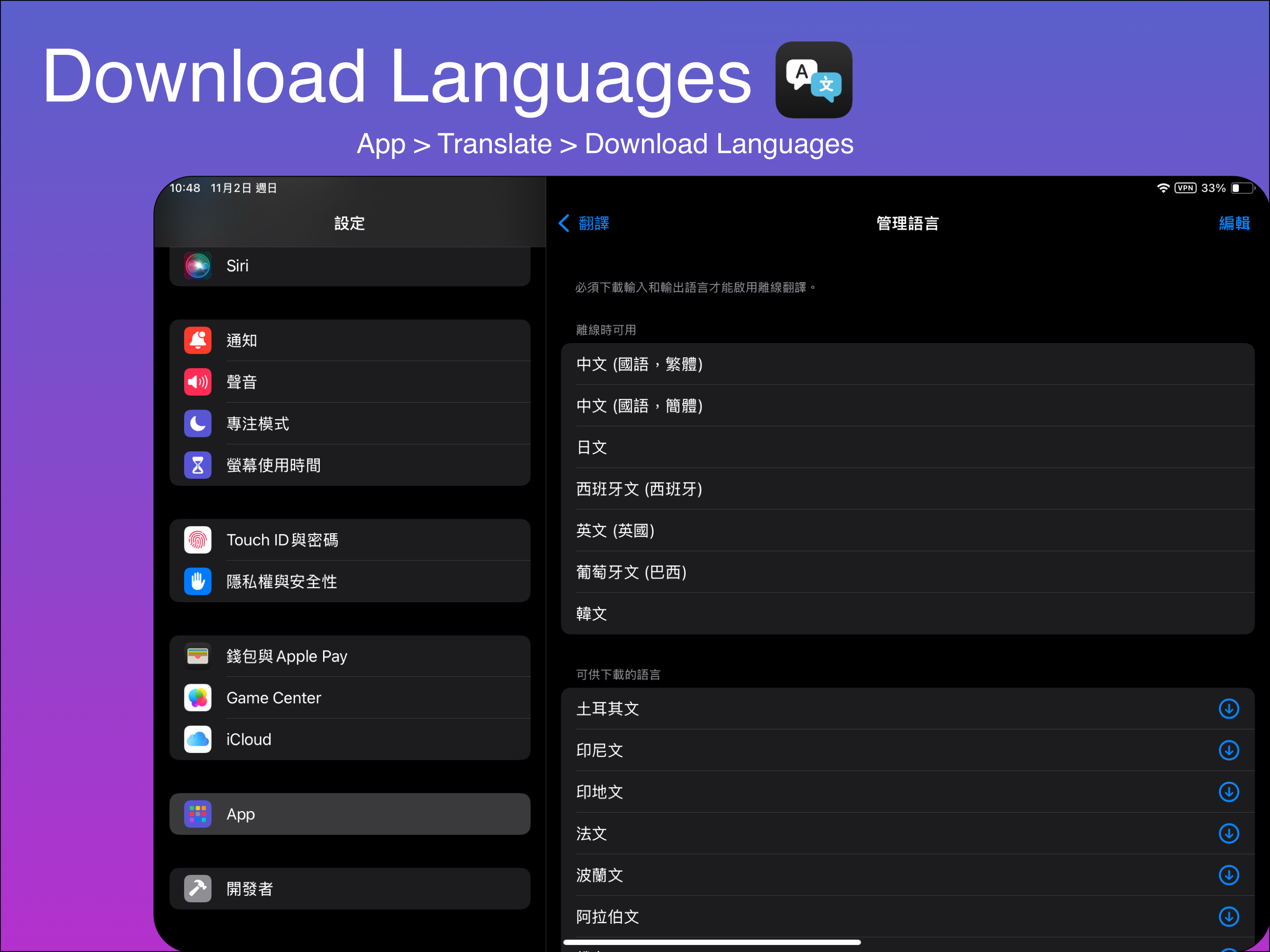
Step 1: Go to “Setting”
- Tap Apps > Translate
- Tap the Downloaded Language
- Select “Manage Languages”
You’ll see two sections: “Available Offline” and “Downloadable Languages”
Step 2: Choose & Download
- In “Downloadable Languages”, find your desired language (e.g., English (UK), Japanese, Spanish)
- Tap the blue download icon on the right
- Wait for download to complete (~50–200 MB per language)
Pro Tip:
- Start with English and Chinese
- Download multiple languages at once
Step 3: Use Offline Translation & Read-Aloud
- Return to home screen → Open PDF or scan with camera
- Select Source and Target Language
- Tap Play → Works even with airplane mode on!
Supported Downloadable Languages (20+)
| Language | Offline Translation | Offline Speech |
|---|---|---|
| Chinese (Traditional) | Supported | Supported |
| Chinese (Simplified) | Supported | Supported |
| English (US/UK) | Supported | Supported |
| Japanese | Supported | Supported |
| Korean | Supported | Supported |
| Spanish | Supported | Supported |
| French | Supported | Supported |
| German | Supported | Supported |
| Portuguese | Supported | Supported |
| Russian | Supported | Supported |
| Arabic | Supported | Supported |
| Hindi | Supported | Supported |
| … 20+ total | Supported | Supported |
Coming Soon: More languages in future updates!
FAQ
| Question | Answer |
|---|---|
| Can I delete downloaded languages? | Yes! Tap the trash icon in “Manage Languages” |
| Download failed? | Check internet or restart the app |
| Not enough storage? | ~100 MB per language. Keep 1 GB free |
| Need internet after download? | No! Fully offline |