
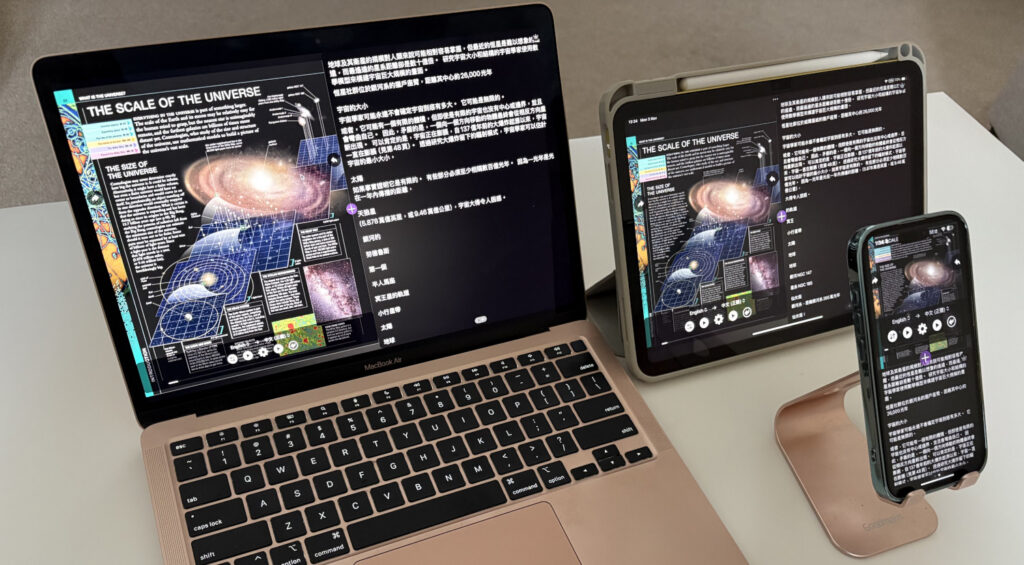
How to Set Up Your Own BOOK SERVER
(Using Node.js http-server — the simplest one-line local book server)
This method lets you turn a folder full of PDFs into a simple web-based bookshelf that you can browse and download directly in any browser.
Why set up a BOOK SERVER?
One of the most practical benefits is improved reading experience across multiple iOS devices.
When you open PDF files through a local BOOK SERVER using the Transay App, you gain near web-server-like bookmark synchronization between different iOS devices. This is significantly more convenient than reading the same PDFs stored only on the local device, because bookmarks, and reading progress can stay consistent across your iPhone, iPad, and MacOS.
1. Prerequisites
- Install Node.js (if you don’t already have it)
- Download and install from the official site: https://nodejs.org/
Choose the LTS version. - After installation, open your terminal (Terminal on macOS/Linux, PowerShell or Command Prompt on Windows) and run:
node -v npm -vIf version numbers appear, the installation was successful.
- Download and install from the official site: https://nodejs.org/
- Prepare your books folder
- Put all your e-books into one folder (subfolders are fine).
- Example paths:
- macOS:
/Volumes/TOSHIBA 4T Flex/My Collections - Windows:
D:\My BooksorE:\Books - Linux:
/home/yourusername/Books
- macOS:
2. Install http-server
Run this command in the terminal (global install is recommended so you can use it anywhere):
npm install -g http-serverVerify the installation:
http-server --version3. Start the BOOK SERVER (Core Command)
In the terminal, run the following (replace the path with your own books folder):
macOS / Linux:
http-server "/Volumes/TOSHIBA 4T Flex/My Collections" -p 8000Windows (use quotes if the path contains spaces):
http-server "D:\My Books" -p 8000Useful options:
-p 8000→ Sets the port to 8000 (you can change it to any free port such as 8080 or 3000)- To allow other devices on the same local network to access it, add
-a 0.0.0.0:http-server "/Volumes/TOSHIBA 4T Flex/My Collections" -p 8000 -a 0.0.0.0
When it starts successfully, you will see something like:
Starting up http-server, serving /Volumes/TOSHIBA 4T Flex/My Collections
Available on:
  http://127.0.0.1:8000
  http://192.168.x.x:8000 (for cross-device bookmark sync)
Hit CTRL-C to stop the server
4. How to Use It
- Local access
- Open a browser and go to:
http://localhost:8000orhttp://127.0.0.1:8000 - You will see a directory listing. Click any file to download it or open it (PDFs usually open directly in the browser).
- Open a browser and go to:
- Access from other devices on the same network (phone, tablet, another computer)
- Make sure you started the server with
-a 0.0.0.0 - On the other device, open a browser and enter:
http://YOUR-COMPUTER-IP:8000
(The IP is shown when the server starts, or you can check it withifconfig/ipconfig)
- Make sure you started the server with
- Using with Transay App on iOS (for cross-device bookmark sync)
- Open the Transay App on your iPhone or iPad.
- Connect to your BOOK SERVER address (e.g.
http://192.168.x.x:8000). - Browse PDF files from the server.
- Copy / paste the selected PDF file link to Transay App’s web PDF inputbox and open it.
- Bookmarks and reading progress can now stay roughly synchronized across your different iOS devices, similar to how a real web server would work — much more convenient than managing local files separately on each device.
- Stop the server
- Press
Ctrl + Cin the terminal
- Press
5. Optional Tips
| Need | Example command |
|---|---|
| Auto-open browser | http-server "path" -p 8000 -o |
| Disable directory listing | Add -d false (not recommended for a book server) |
| Disable caching | Add -c-1 |
| Run in background (macOS/Linux) | nohup http-server "path" -p 8000 -a 0.0.0.0 & |
6. Important Notes & Security
- This is a simple local server. It has no password protection and no HTTPS, so do not expose it directly to the public internet.
- If you need external access, use a tunnel tool (ngrok, Cloudflare Tunnel, frp, etc.) and add authentication.
- Always put the folder path in quotes if it contains spaces or special characters.
- Closing the terminal window stops the server. For long-term use, consider tools like
pm2or a system service.
7. Quick Start Summary
- Install Node.js
- Run
npm install -g http-server - Run
http-server "your-books-folder-path" -p 8000 -a 0.0.0.0 - Open
http://192.168.x.x:8000in your browser and browse files - Copy / paste the selected pdf file link to Transay App’s web PDF inputbox for convenient cross-device bookmark synchronization
That’s it — you now have your own lightweight BOOK SERVER with better multi-device reading support!